Saturday, December 29, 2007
Reliability Monitor and its analysis of my work computer
First, my usual disclaimer:
Sorry I am such a lackadaisical blogger. Bizarrely, my traffic is basically the same whether I blog or not -- between 70 and 90 visits a day according to Google Analytics; although lately the trend is downward. I will try to get a series of shorter posts out more often than every 60 days. This is not one of these shorter posts.
Is there no way to gather more usable data from the Reliability Monitor? I ran it at work and it had data going back for three months, but seemingly no export capability. To get at the data, I screen-captured and pasted each screenful of data into OneNote, used "Copy text from picture", pasted them into TextPad to fix and put back into tabbed columns, and then pasted them into Excel. Now I can pull statistics like the following:
Application | Version | Failures |
Outlook | 12.0.6023.5000 (Outlook 2007, prior to SP1) | 13 |
OneNote | 12.0.4518.1014 (OneNote 2007, prior to SP1) | 9 |
Firefox | various (1.8.20071.12718, the most recent, has crashed the most, and it seems that 1.8.20070.25881 was the most stable) | 8 |
TabTip | 1.8.20070.25881 | 7 |
Communicator | 1.0.559.0 (2005) crashed 5 times, 2.0.6362.0 (2007) crashed once | 6 |
Interwoven DeskSite (Manage32.exe) | 8.2.87.0 (8.2, I think SP1) | 6 |
Procmon.exe | 1.0.0.0 | 4 |
SPCSCM.exe | 3.4.0.6 | 3 |
Visio | 12.0.4518.1014 (Visio 2007, prior to SP1) | 3 |
Excel | 12.0.6024.5000 (Excel 2007, prior to SP1) | 2 |
NiAiServ.exe (Enteo NetInstall) | 5.80.0.1399 | 2 |
...and 11 other apps crashed once.
So what information can we draw from this?
Outlook:
It's somewhat unfair to taint Outlook by problems caused by its add-ons, or the size (~2GB) of my OST file, but 13 crashes in two months (none were logged in December, it would seem) is a couple crashes a week. And also, I'm probably like everyone else in that Outlook is far and away my most used app. So I don't know if I rebuilt my OST in the December timeframe, or some add-on that was causing instability got disabled and I never noticed, but I guess it's been better lately. I'll have to revisit after running Office 2007 SP1 for awhile.
OneNote:
OneNote has no add-ons, so I would have to blame its instability on a) poor handling of the online/internet/offline transition and b) LiveSessions. I have a notebook that I use constantly that's on a file share at work, a few notebooks on SharePoint that I edit throughout the day, and maybe 15% I am in meetings taking handwritten notes with my tablet. I also spend about 15 - 20% of my time in LiveSessions with one or two colleagues, taking shared notes in meetings. Handwriting is pretty stable, I think it's the LiveSessions that cause some crashing, and some of it is just random lock-ups.
Firefox:
Before I looked at the above statistics, I would have sworn to you that, at work, far and away my least reliable application was Firefox, and I still feel that these stats don't capture every crash or lock-up that I experience with Firefox. It is telling that Windows Reliability monitor didn't log any Firefox crash for almost two months, between 9/20 and 11/15, while I guess it was on version 1.8.20070.25881 (or maybe some interim, extremely stable version between that and 1.8.20071.2514). I like to think that I have minimal add-ons in my work Firefox but I must have enough to cause a persistent instability, like freezing when I resize the window with an IE Tab page selected, or a freeze that just happens without using Firefox for awhile.
Why do I stick with Firefox because it's so unreliable? I guess my IE 7 experience was worse, or sufficiently different and lacking in functionality as compared to Firefox that it wasn't worth it. IE 7 didn't seem to have as robust a tab saving mechanism as Firefox, and it crashed often enough that a group of tabs that I meant to leave open were gone, and that really got on my nerves after awhile.
TabTip:
This is a TabletPC thing that Vista is convinced has some compatibility issue. I can't remember the error but Vista seems to periodically close it and throw some error message. Mind you, this has never happened when I'm actually in tablet mode or using tablet features, it happens when I'm doing something else altogether.
Communicator:
I don't remember this crashing, to be honest, so I don't know why.
DeskSite:
DeskSite likes to freeze up when you launch a document out of it -- it's not just a Vista problem, it happened a lot when I had XP, too. With the Vista error reporting feature turned on, most of the time I can actually find out why this is hanging -- typically it is Firefox but it can also be OneNote, Outlook, or Visio (which isn't really integrated with Interwoven yet and basically causes problems whenever it is launched).
I think I've already ranted about legal-specific software vendors, and I know this will be a popular search result because it contains the terms "Interwoven" and "SharePoint", so I will be gentle and note that despite my enmity towards the Interwoven product, its competitor (Open Text LiveLink eDOCS and whatever else they called it, formerly Hummingbird DM5) just a few days ago released their Office 2007 product. So, like, a full year after Office 2007 shipped. Shows you where the Open Text product is going -- down the toilet. (Disclaimer: The previous view is mine alone and does not represent the view of my employer)
Procmon:
If you forget about procmon and leave it running, you use up all your RAM and your computer falls to shit. Of course, you usually RUN procmon so you can figure out why something else is going to shit on your computer, so sometimes procmon is a symptom rather than a cause. Regardless, that's what's going on with my 4 procmon crashes, I think.
SPCSCM.exe:
I don't even know what the hell this is so I looked it up to find that it's the Sprint PCS Connection Manager. I delivered (and then took back two months later) an EVDO card to my colleague and so of course I installed the software for use on the trips to and from Chicago. I have a Treo 700p with PDAnet and the PCS software, despite the 3 crashes, was like 300 times more reliable than that piece of shit PDAnet. I'm glad I can get Internet access for free and only expensed $25 or whatever to my company. But I'd way rather not have to spend 20 minutes fucking with, and ultimately rebooting, my laptop to get stupid PDAnet to work. As I have said before, PDAnet is better than not having any Internet access, but not by much.
The rest:
I realize I'm detailing the apps that crashed on my work computer, which is inherently a fool's errand to begin with. But since I started it I might as well finish:
Visio: Visio 2007 Interwoven integration is non-existent, but for some reason it is enough to leave Visio.exe in memory, using 50% CPU and fucking up all other Interwoven calls, until you kill it. Hence the three crashes. I like to think that I am really good at Visio, but with 2007, if I can avoid using it, I will.
Excel: Excel is usually really good so I'm surprised to see these two crashes. I blame Interwoven for this, also. Maybe unfairly ;)
Enteo NetInstall: This company has like three support people in the U.S. and after two years of terrible service my company has ceased recommending its products. I try, on my computer, not to run NetInstall but there are some apps our IT people packaged that I need so I have to from time to time. This then leads to the inventory app running up my CPU utilization until the app is killed.
I was going to check my home PC against this, as I would think the results are very different, but I didn't realize how long this blog entry would turn out to be. I think that, in summary:
- Reliability Monitor would be even more useful if it could export its data to help you pinpoint your worst-behaved apps
- I think Reliability Monitor misses some crashes and hangs
- Firefox is totally unreliable on my work PC but is excellent at home with the same add-ons plus a dozen more; WTF?
- Interwoven DeskSite can cause unreliability
- Microsoft products crash the most :D
Back soon,
--sbreck
Labels: Firefox, Interwoven, OneNote, TabletPC, Treo, Vista

Friday, March 02, 2007
updates…
Sorry, semi-faithful readers, for being such a bad blogger. I keep writing these long things and then polishing them continually and then the next thing I know it's been another month without me posting anything. Also, this was a pretty busy month work-wise. Anyway, here's what I've been thinking about:
- New X60 Tablet: I got a new tablet, a Lenovo X60. It's totally sweet. This is the blog entry I've been writing in little bits for a few weeks. I will be blogging about it next because it seems people found my X41 Vista install entry helpful. Also, people who subscribed to this blog because they liked Tablet PCs are probably wondering if I still use a tablet, or else they unsubscribed. I wouldn't know. Anyway, the tablet features of Vista are very good and I look forward to writing about them.
- OneNote/SharePoint: Still the most popular search term leading people to this blog. I kept having my sections suddenly get "access denied" and turn read-only on me and it was driving me nuts. Weirdly, this never happened on my home machine. Then, trying to fix something else, I reset my settings in IE and all of a sudden I was being prompted for a SharePoint password instead of being booted out of my section. It was a refreshing change. Please see the comments of this entry on Jeff Borlik's blog for details. This entry helped me understand what might be happening in a way I never would have. Unfortunately, today in a meeting the problem returned, and I had some trouble fixing it. I have learned that I can usually exit OneNote, log out of SharePoint and close the browser, reopen the browser to my SharePoint page, open the section from SharePoint, and then the OneNote section will often resync properly. I just learned tonight that I have to close Outlook as well, because it too is integrated with SharePoint, and when you switch from office (connecting to SharePoint locally, or via NTLM authentication) to home (over the internet using basic authentication), the SharePoint authentication gets messed up. Anyway, I think SharePoint authentication is super picky and making it so that you have to reauthenticate frequently is annoying but prevents lockouts on your sections.
- Vista Media Center on the hp z552: My Media Center PC is spiraling off into unreliability, and my wife is starting to lose her patience. I have it set to the shittiest non-interleaved picture possible, shut down every process that could be shut down, turned off Aero and anything that actually looks nice in the non-10' user interface, and still I have jerky video if the Media Center decides it's sort of busy (like, if you are watching a time-shifted program while something else is recording, or even watching a program while I am copying some files from my computer to the Media Center PC). It's annoying as hell. Now, we're sometimes seeing problems where it turns on, but is unresponsive to the wireless keyboard or remote or even a USB mouse that we've started to keep handy to try and reestablish control. Another neat feature is that sometimes it will make a bunch of those "doo-DEE, dee-DOO" sounds that mean it is finding and then losing devices, over and over again. I guess I will have to blow away the box and install real Vista. (I have RC2 now, which I upgraded from the factory XP MCE 2005 load.) However, I keep reading that HP has some drivers that are only on the factory-loaded machine's C: drive, and last time I was unsuccessful in Ghosting the machine, so I'm worried that my keyboard and remote will not work if I install from scratch. Also, I'm cheap, so I'm only buying the Home Premium Upgrade, so I have to do some complicated shit to install from scratch. Plus, stupid HP only has XP drives for the thing. Come on, the parts are probably similar to a bunch of new machines that run Vista, why have they frozen their old z552 page in time? (Aside: I went to the Dell site to look for Vista drivers for my over-3-year-old XPS Gen 2 prove a point that HP abandoned their old hardware while Dell did not, but the only Dell Vista drivers on the downloads page were like BIOS, diagnostics, and two monitor drivers. So Dell does the same thing, although maybe not with machines newer than three years old.) I hope the clean reload fixes my problems (this blog entry gives me hope), otherwise I think I am going to reload the factory image of XP MCE 2005 and see how that works for the basic stuff we need the Media Center to do. I had thought of buying a cool half-height ATI X1600 with an HDMI connector to future-proof the box, but I worry that it will overwhelm the power supply and cause the loud-ass annoying fans to run constantly instead of just half the time. Another option is to get an XBox360 to use as an extender so that the Media Center PC can come back in my room to keep things quieter in the living room, but I've heard that the XBox360 is pretty loud, also (though maybe that was just the DVD -- and I don't think we've watched one in three years). And of course there is always the option of giving up completely and going with a DVR from the cable company. At least then we'd get HD :/
- Daylight Saving Time changes: I feel like this is the coming apocalypse and I couldn't be more annoyed at Microsoft. How long have people known about the March 11th time zone change? Far longer than when the first patches arrived a few weeks ago. Those were just in time to royally screw up everyone's calendars, and leave you in a situation where some people were unpatched and were sending you appointments that showed up at a different time for you than for them. When you have a software company saying things like "Please print out your calendars" and "Make sure you include the time of the appointment in the subject line when sending to others" and "Verbally confirm all appointments", that is basically like them saying, "sorry, we are complete idiots and could not have fucked this up any more than we did." Seriously, how can we be printing out calendars and verbally confirming appointments in the year 2007? If all these patches went out a year ago, which would be six months after the Energy Policy Act passed, or even six months ago (a year after the Act), pretty much people would be patched right now, at least to the degree that TWO FUCKING COMPUTERS WOULD AGREE ON WHETHER AN APPOINTMENT IS AT 1PM, NOON, OR 2PM. That this is not the case with 10 days left to go is evidence that Microsoft should be beaten for not addressing this. In my last blog entry, I ranted about the document management vendors being poorly prepared for Office 2007. This is even more inexcusable because like hundreds of millions more people use Outlook calendars on Exchange servers than use law firm specific DMSes. Thanks, Microsoft, for three weeks no one will be on time to any meetings, or court appearances, or deadlines that they set for themselves, or what have you. You have failed. (As an aside, it sort of amuses me to think of the possibility that for these three weeks no one will go to meetings, a sort of "National Quit Screwing Around in Meetings and Just Do Your Work Month", and American productivity will leap to new heights. Only complainers like me, who will pathetically try to go to our silly little meetings only to get annoyed when no one is there for our "weekly status meeting" or "bi-weekly project task list review", will not gain from this problem. And, the economy could start roaring ahead from all the cool inventions and innovations people come up with when they don't spend half their days in meetings. On the other hand, email servers could collapse under the strain of all the extra emails people will send because they are not in meetings. Anyway, you never know what will happen. Maybe I will eat my words, including all those bad curse words I put above. Ask me on April 8th(?), if I have not dug myself into an underground bunker by then.)
--sbreck
Labels: DST, Media Center, OneNote, SharePoint, TabletPC, Vista
Sunday, November 19, 2006
OneNote 2007 and SharePoint 2003 -- problems (update: resolved)
I write this blog entry in frustration and will probably revert away from SharePoint. The experiment was a failure. Back to file shares and using VPN to access them.
Update: Never blog in anger. Scroll to the bottom to see how this problem was resolved.
Now that I've blown off a little steam, let me describe what I am trying to do. Chris Pratley left a comment on my prior entry to let me know that OneNote 2007 could work with notebooks stored in SharePoint 2003, and my Beta 2 collaboration entry said that with file shares, you share the FOLDER ( = notebook), not the section. So finally those two factoids sank in and I realized that maybe SharePoint 2003 might be able to store an entire notebook.
That would be cool, because I was just starting a project with a coworker who is on Vista and as such is afraid to use Juniper Network Connect (warning: PDF warning2: weird fonts) on his machine, and it is highly likely that our PPTP VPN doesn't work from this client. So if we were to do any kind of collaboration with both of us traveling, it would be way easier to use SharePoint than shares on our office file cluster.
I made a SharePoint Document Sharing Site, and then (here is the radical innovation) made a folder called "[Client Initials] [Project Initials] OneNote" under Shared Documents. I then copied the contents of the notebook I'd made on my file share into this folder. I then closed my notebook, and opened the one from SharePoint. So far, so good! I got my coworker to do the same, and we were in business! I had used the Group Project template, and as we looked at the sections to get the project started we realized that some didn't make sense, and one (Meeting Notes) that I'd moved my notes and agendas into would make more sense renamed to "Project Management" (which follows our Interwoven "matter-centric" folder structure -- please don't ask me who designed this) and the "Research" section would best be repurposed as "Client Supplied Materials" in the same vein.
Note to blog readers: do not rename OneNote sections. It leads to corruption of existing materials. That section of the notebook would no longer sync, despite multiple closings (leaving a Misplaced Section) and openings. The lesson of OneNote 2007 + collaboration is to make periodic offline copies if you care about the pages you create. Otherwise the sync will get all fucked up and you will lose important data, like the notes from a meeting. Or at least you will not be able to sync those notes back in until you close the notebook, reopen it, and then copy the notes in from the misplaced section. What makes a file refuse to sync? It is a mystery, but it has happened a lot.
After some time, I believe this particular client project notebook has stabilized and is syncing fine for my coworker and I. I will leave it in SharePoint for now but I don't entirely trust it and will keep my eye on everything I do and manually synchronize my notebook and make sure I see the checkmark as often as possible.
Since I felt I had stabilized my client notebook, it was time to take another step. I run a weekly meeting with my peer managers, my boss, and his boss which mainly revolves around the staffing of projects. (In case I haven't ever mentioned it, I manage a small group of consultants in addition to my billable client work.) Since we are busy as hell lately, I've been using the meeting agenda as kind of a way to keep track of open requests and the other various tasks of our group. In an ideal world, my peer managers and my boss, who all have at least OneNote 2007 B2TR if not already the RTM version, could add items to this agenda, follow up on their tasks, etc. even if they weren't able to attend the weekly meeting. Of course, they don't -- they barely even look at the agenda when I send it out, and still email me things like "can you put [some topic] on the agenda?" I won't get into further detail on this except to say that highly technical professionals with 6+ years of experience can sometimes be annoying Luddites…
Anyway, I figured that, in my peers' defense, they all work very hard outside of the office, and probably rarely have reason to VPN in. What I am touching on is probably worthy of a larger discussion beyond the OneNote/SharePoint context, but many places you visit as a consultant do not have workable VPN access, and VPNing into your office is somewhat of a dated concept, given security (you open a completely unprotected tunnel into your office LAN) and practicality issues (I get all my Outlook email via RPC over HTTPS, why can't I get the rest of my non-static data this way?). SharePoint should be a no-brainer here because, just like with Outlook, you could get your key files as well! (I won't get into SharePoint's overlap with law-firm-specific document management like Hummingbird (Open Text) and Interwoven, although I could probably get a much better job than I have now, which wouldn't require so much god-damned travel, if I could speak more intelligently on that subject. Ahem. Anyway.) So, for this reason, I thought that moving these files to a SharePoint site would maybe make it easy enough for my colleagues to actually participate in the agenda development and maintenance so that I don't have to remind them of their tasks for Monday every Friday morning like as if I'm a father or something of grown-ass men. Ahem. Anyway.
The other significant advantage of moving my files to SharePoint is that it lets me edit them on my home computer, in 1600x1200 on a 21" LCD screen, rather than in 1024x768 on my 12.1" ThinkPad X41 tablet. But, my tablet, which runs my work Outlook and my work Interwoven and my work DTE time entry system and everything else, can update in quasi-real time so that when I finally want to send the updated agenda out (for example), it is all synced up on the laptop and ready to go.
So, today I moved my files from the file share on the office cluster to a new folder I had created under my team site. To keep the speed up and save bandwidth, I Citrix'd into my office, opened SharePoint, switched to Explorer view, then opened the file share in another window and dragged the files in. (Note: if your file is called "Agendas & Minutes.one" you will have to rename it to "Agendas and Minutes.one" because the "&" is a reserved character. SharePoint doesn't tell you this in Explorer mode, it just refuses to copy. Uploading the file gives an error that is clearer.) I closed my file share notebook on both my laptop and my home computer (I can VPN into the office from my home computer, even though I know I shouldn't). Then I opened the new notebook from SharePoint. Both computers synced. So far, so good.
On my laptop, I started making some minor adjustments to one of the pages in my notebook and quickly noticed that it didn't allow me to do so. Shortly afterwards, the designation "(Read-Only)" appeared next to the page name. Remembering this from my short-lived ON2003/SP2003 days, I right-clicked on the section but the "Open for Editing" option has of course disappeared. "Oh," I figured, "my home computer has it open." Closed out OneNote on my home computer, closed it out on my laptop, waited for a bit, and then opened it on my laptop. It opened instantly but still said read only. It has now been about five hours and it's still read-only. I can't take notes in my notebook for tomorrow's meeting so I copied the agenda into my "generic meetings" section and then sent it to the team from there. Great.
So then I went into OneNote on my home computed, opened up the same notebook from SharePoint, made the edits, and then noticed the "This notebook is not connected" icon next to the notebook. I clicked the icon, pressed "Sync this notebook now", waited for five minutes, and finally received "This section contains changes that cannot be synced because access to the section file is denied. Correct the file permissions or save your copy of this section elsewhere." In the sync screen, this shows as error 0xE000004A. Remember, this is a BRAND NEW NOTEBOOK with three sections in it. One section is 15MB and has 100 pages in it (weekly meeting notes for two years) and the other sections are under 200KB. It is the "large" section that cannot be synced. What has it open? I am not in SharePoint; I just have the two computers with the file. This I thought was a radical new feature of OneNote 2007. Will the problem just go away tomorrow like similar OneNote problems? Is this something that happened because of the way I transferred the sections from my file share notebook to SharePoint? Is it because I upgraded the sections from OneNote 2007 B2TR to OneNote 2007 RTM? (Even though after I uninstalled B2TR, loaded RTM, and then launched RTM, nothing came up that indicated that it was doing anything to my notebooks, they just opened.)
Is the OneNote notebook syncing just this fragile? It seems not really ready for production use. Except that I am using it for production use, really for everything that contains data that I update regularly and want to share with colleagues, which is why I'm so frustrated.
Update: After having the same problem with my client page the next afternoon, I asked my colleague on the project, who also has responsibility (and administrative access) to support our server infrastructure, and it turned out that our SharePoint server was out of disk space. (It is somewhat of a "rogue" server (I'm the only one who really stores anything on it) so it's not monitored.) The condition was cleared and the manager document workspace was able to sync again. The client workspace is still showing as "Waiting for update" as of two hours ago but is sort of updating. So the moral is, before you get all huffy about SharePoint's viability as I just did, make sure you monitor your SharePoint server properly. I am still leaving this rant/entry up because I am still having a problem syncing my client billable production data, but my problem from last night was solved by what turned out to be a fairly obvious solution.
I don't suppose there's a debugging mode in OneNote 2007 that will show you a reasonable excuse for why a synchronization might fail?
Update2: Once I got home and connected my laptop to the internet, it seemed to find our SharePoint server, sync, and everything seems fine. It also continued to sync at work once the disk space condition was cleared, though its display did not reflect that.
technorati: OneNote 2007 SharePoint
Labels: OneNote, SharePoint
Saturday, September 16, 2006
...in case you hadn't heard enough about OneNote 2007 from me
I've installed this B2TR thing all the kids are talking about ("Office 2007 Beta 2 Technical Refresh" for those of my non-technical readers I have not driven away with my incessant nattering about OneNote and what have you). But I also had some more comments about OneNote 2007 that I had not had a chance to blog about. Here they are:
- Fixes for shared notebooks on file shares: I think B2TR has fixed some of the problems I had with shared notebooks living on file shares -- my laptop would often refuse to sync with my home notebook after it had been syncing all day with the office notebooks, and then upon a reboot, would sync just fine but then refuse to sync in the office after waking up from hibernation the next morning. So far it's only been two days but it hasn't had problems syncing in the office, hibernating, and then syncing at home. This is good!
- OneNote and SharePoint: I guess if you are not a moron like I can be sometimes, you probably realized that SharePoint 2007 was a requirement for a OneNote 2007 shared notebook.
- URL handling: I've already complained about this in my Outlook 2007 post, but will take this opportunity to complain about the OneNote implementation as well because I think it is a really dumb idea. And I live on the Upper West Side of Manhattan which is like the complainer's capital of the world, so I'm just trying to fit in. OK. Take for example this URL, which was the deployment instructions for SharePoint 2007 Beta 2 a few months ago. If you click it, you see the content has been moved and replaced with a pointer to the new location. However, the URL you get when you click it is different than the one in my link. OneNote (and, I'd assume, all Office products) intercepts this click and tells you basically that it's a 404 error. Fortunately, it does launch the URL in Firefox so you can see how to get to the new location. (FYI, since it took me a few tries to find it, the proper replacement URL for the Deployment Guide for single and server farm environment is here.) So, in other words, there's really no reason to present you with this error. Worse, I expect that if a site was dead, OneNote would let my browser tell me that, but instead it intercepts this and refuses to launch. Seems to me to be wasteful code to have Office try to do something with URLs rather than pass them to a browser; I guess maybe it is trying to load Office documents itself rather than have the browser launch them? I can't tell how I feel about this in OneNote (like, maybe they are trying to remind you to update your URL in your OneNote page) but I previously wrote about how annoying I find it with Outlook.
- Ink improvements: In many ways I find it freeing that I don't have to worry about the ink Guide and can just write on a page without worrying about whether it's a new paragraph or not. And ink-to-text conversion finally is smart enough to figure that I basically only want one font size per document, not 15 different ones depending on how big my initial capital letter was or whatever made it decide before. I also noticed that, in B2TR, the "Insert or Remove Extra Writing Space" tool has gotten far more granular than it was in Beta 2 -- by that I mean that in Beta 2 sometimes you would split the text one line above or below where you wanted it, but B2TR seems to have made it so you can split it wherever you want, which is good.
- Messier text grouping / ink handling: However, one thing I've found that annoys me is that the "Insert or Remove Extra Writing Space" tool now creates a new text group with the text beneath where you split it instead of just adding blank lines. The real-world effect is shown in the following pictures:
- First, you type an agenda of points you're going to bring up in a meeting. Notice how it is all nicely grouped together:
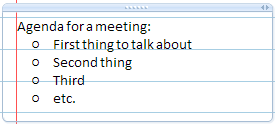
- Now, during the actual meeting, you want to take notes under each point, so you use the Insert Writing Space tool to give yourself some room. After the meeting, look what you're left with:
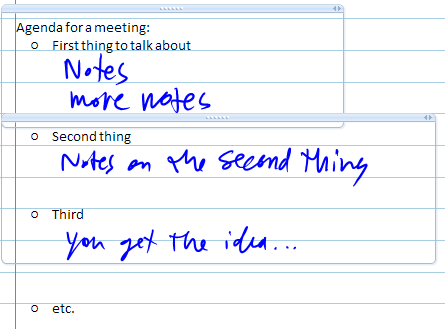
- So, if you need to convert your notes to give to others after the meeting, you'll then find that you can no longer "snap" the text groups together like you could in OneNote 2003. So you have to grab the text itself and move it into the prior group. Now, check out how the second group overlaps the first -- that means it's going to be nearly impossible to move it into the first section, you'll have to cut and paste. This is a pain! I know that if you are just taking notes for yourself, or you have great handwriting, you could just send out your notes to everyone as-is and no one would care about whether it is all grouped together or not. But you are typically converting it into Word or an email, sometimes for people that don't have OneNote (or, certainly in my case, who don't have OneNote 2007) and you just can't send out handwritten stuff. I've found that the time spent moving stuff around (and particularly piecing together where writing in margins was, since conversion can change text position and leave writing in its old position, no longer related to text) has offset the generally better ink-to-text conversion, so it's a wash. If I know I have to spend time converting my notes from a meeting, I'm tempted to leave the ThinkPad in keyboard mode rather than tablet mode, and so what's the point of tablet mode then?
- Anyway, if I was to make this section useful rather than a complaint, I suppose I would suggest an option that allows you to snap the text groups back together for us OneNote old-timers. And perhaps a way of pinning writing to text or word positions? (Like, if next to the word "Third" above I wrote "didn't discuss". In OneNote 2003, if I first tapped the pen just to the right of the "d" in "Third", then it would know that I was writing on the same line as that word, and so it would stay with the text as I edited and/or converted stuff above it. In OneNote 2007, what I wrote would be its own text group, and would stick in its original position even as my editing made the word "Third" shift upwards. So then the writing would be out of context with whatever ended up in that screen position. So I'd like there to be a way to have writing follow OneNote 2003 rules at least as an option, or if I could somehow pin it to the word that it's supposed to be next to.
- First, you type an agenda of points you're going to bring up in a meeting. Notice how it is all nicely grouped together:
- Sections moving around: I've noticed that since my upgrade to B2TR a particular section keeps sliding all the way to the right of my notebook on every few launches. It is supposed to be 2nd from left. The section is in a "shared" notebook that is really a share pointing to my personal home drive, secured to me. I made this section so I could take my notebook offline. Not sure why my Miscellaneous section keeps ending up on the right and it's easy to drag back, but that's what's happening. Strange.
Alright, I'm trying to keep my blog entries shorter and have descriptive headings in the bullets so people are more inclined to read them. So, with that, enjoy your weekend, I'm out...
--sbreck
technorati: OneNote 2007 B2TR
Labels: OneNote, SharePoint
Sunday, August 27, 2006
issues with OneNote 2007's new collaboration features
Now that I've been using OneNote 2007 Beta 2 for a few weeks, I have used the LiveSession feature in 35 meetings (I counted so I'm not exaggerating on this. welcome to my world...). Some were contiguous so I kept the session open, but still, that's a lot of sets of notes to have taken. I can thus consider myself some sort of LiveSession SuperNerd and am adequately credentialed to complain and give suggestions on this product. I have already discussed LiveSessions in some detail in my overall review of OneNote 2007, so I will try not to repeat myself, but now that I've used them a lot I have grown less happy with them. Here goes:
o Losing sync: My coworker and I have a serious problem which has been showing up frequently. It is that the session will sometimes "hiccup" such that he can see me typing and appears to be able to type as well, but I can't see what he's typing. The fix is usually for him to exit the session, delete the section that was shared, and open the invite again to launch the session. This can take focus away in meetings since we first have to determine that there is a problem via IM, and then it takes some time to fix it. In a half-hour meeting, if you spend 5 minutes trying to fix a technical problem, you've missed a lot of the meeting. I for a second threatened to switch back to OneNote 2003 if this isn't made more reliable in the next few weeks, but of course I won't, I am just going to rage impotently :(
o No sharing pages, only sections: I'm still annoyed with the per-section sharing thing, and miss the old per-page thing. I think that
o Worse performance: I don't think performance is as good in a LiveSession as it was in the old shared sessions. Maybe that's because I have 6-12 pages in my sections now that I have to share versus one or two, or maybe it's because Beta 2 hasn't been through much performance tweaking (which I HOPE is the case because OneNote is relatively unusable when you have "Sync automatically" turned on), but seeing someone else's typing is not nearly as instantaneous as it was in OneNote 2003.
I also talked about Shared Notebooks in my prior OneNote 2007 review, and if I had written this review at the end of the work day on Friday, I would have had only great things to say because I think I have finally figured them out. Here are some good and bad things about shared sections:
o Share the notebook, not the file, and you'll be fine: The number one revelation that has worked for me is that you must share sections at the notebook (folder) level rather than the section level. Yes, it works to place shortcuts as I suggested before (see the part after the struck-through section), but you can't then force them to sync if you want to stay offline because, well, letting it attempt to sync while you're not connected to the file share that your notebook lives on makes performance suck. What you have to do is create notebooks, then do a File\Open Notebook\name of share on which your sections live, and then you will be able to deal with the shared sections with far fewer hassles. So here's what I did at work:
· \\work-server\my-public-share\my-client-name which stores notebooks for my St. Louis project, one huge one that is all my personal notes, one that will become the real shared notes which will be our archive when the project is done, and one that is a small section for that week's notes. The latter only exists because you can't share pages, only a section (yeah, this isn't the first and it's not the last time I'll be complaining about this)
· \\work-server\my-private-share\OneNote which stores all my private notebooks. This was my second big revelation, which is that rather than take "personal" or otherwise non-shared notebooks offline like you did in OneNote 2003, you should store them in a share and let them sync, even though you don't need to share them with others. It's possible that this still works but OneNote was horribly confused in my case because our My Documents is a DFS share that we take offline. Don't do this. So every single notebook had a sync icon, but was also stored locally, which might be why the "Sync automatically" setting was causing such crappy performance and why my notebooks would disappear sometimes.
§ Speaking of the "notebook disappearing" point, I will suggest to Oliver Sturm that he do what I did, which is to make sure that sections on a server that he wants to take offline are accessed only from a Shared Notebook (e.g. File\Open Notebook\type the share name). Before, I was getting misplaced sections all the time, and now, it hasn't happened since.
· \\home-machine\share-for-home-sections which is where I keep things like the section that stores my blog in case I want to write on the road and my section for miscellaneous stuff like appliance purchase info and whatnot. This was one I'd tried to make work first and finally found out the File\Open Notebook trick, and it's been working like a charm. Make sure you delete all remaining shortcuts to sections that live in the shared notebook, or you will see wackiness.
o Don't try to outsmart OneNote or it will corrupt your files: I have several sections with which I'm having a problem:
· My miscellaneous home stuff section is throwing an 0xE0000898 error and advises me to report the bug. Somehow, between copying it around and creating shortcuts to it and using OneNote to move it and whatnot, finally something snapped. I have a single page in the bottom that I cannot delete, and I get "An unknown error occurred while trying to open this page". It must have been a bad sync between laptop and desktop that caused it. I had to move all the pages to a new file, delete the old file, and then rename the new file to be what the old file was.
· My client section had somehow become corrupt, and I suspect I need to blow away the cache on my laptop, but I did all this work to consolidate my notes and my colleague's notes that I really don't want to lose. I think there is something seriously wrong with the syncing, because my VPN connection showed over 400MB read in syncing these files, when they are both about 25MB apiece. Every time I try to sync, it seems that OneNote reads 100MB or so and writes a tenth of that, but never finishes. I seriously hope I haven't lost my changes (which were moving a bunch of notes from my personal into the new shared section). I can watch the files sync for hours but I worry that they'll never finish. :(
§ The weird thing is that it shouldn't be that slow over the VPN -- I VPN'd in on my home machine and opened up the shared notebook for this client and it only took a few minutes to synchronize completely (except for a few pages that OneNote knew I was trying to sync on my laptop). It read 657MB to open these 64MB of shared files. Maybe I'm just not letting the laptop stay connected long enough? Does OneNote really need to read 10 times as much as the size of the OneNote file to synchronize it? Or is the count of bytes that your network connection keeps not accurate?
That's all I got for now. I'll follow up if my new system works, and if you googlers have any suggestions on how to minimize the LiveSession problems, I'd love to hear 'em. I'd like to thank Dan Escapa for his link to my review and of course for his work on the product which, despite all my complaints, is a pretty revolutionary update to an already great product.
--sbreck
P.S. excuse the funny-looking bullets, Word 2007 refused to post this to Blogger so I had to paste it in.
Labels: OneNote, SharePoint
Thursday, August 10, 2006
More on OneNote 2007 / Word 2003 coexistence
To reiterate from yesterday, my goal is simply to stick with my company's required word processing platform, Word 2003, but extract meeting notes out of OneNote 2007 in a format that people can use, edit, etc. The primary problem is that bullet point formatting of multiple-line bullets that looks great in OneNote is all messed up in Word 2003.
Let me show you an example. Here's what the standard bullets look like in OneNote 2007:
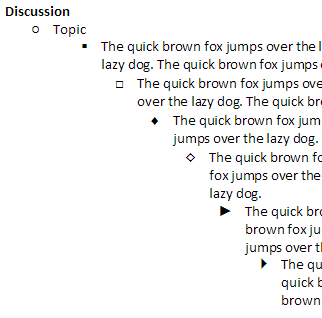
And, pasted into Word 2007 (or Sent To Word, or Published to Word) they look very similar:
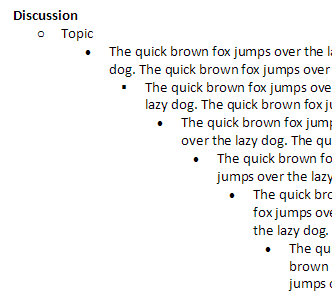
The only real difference (besides more generous margins) is that the bullets aren't as WingDing-y. That's maybe a good thing for professional documents.
Now, take a look at what you get when you try to paste, send, or publish this same data into Word 2003:
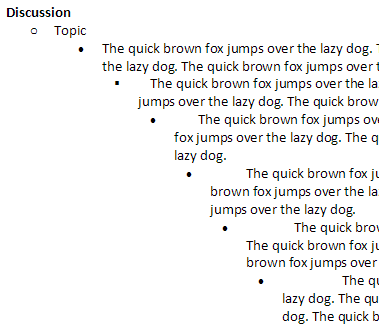
It's total crap.
I tried the new Publish to PDF option, but PDFs cannot be pasted from in any reasonable way. This is one of the many reasons why PDFs suck. The PDF looks fine (except that the table is too narrow) and has text in it, but if you paste that text into Word, it is like one giant run-on sentence. Doesn't matter if you choose Copy as Text or Copy with Formatting.
So, I'm not an idiot, I created a bunch of styles to relatively easily clean things up, but I really wish it would paste in USING the styles so I didn't have to highlight every bullet point and apply my style. I recognize that Microsoft probably hasn't yet paid much attention to people who don't upgrade the whole suite, so maybe they greyed out the Send to Word option knowing that, as a Word 2003 user, it would only lead to grief?
--sbreck
technorati: OneNote 2007, Microsoft Word
Labels: OneNote
Wednesday, August 09, 2006
OneNote 2007 review
I upgraded to OneNote 2007 (Beta 2) at home about two months ago but only really used it to blog. This Monday I upgraded to OneNote 2007 on my work tablet, and used it for two and a half days, and so far I have some mixed feelings. As you are learning if you read my blog, I have not bothered to go and read the reviews of others before writing this.
Here an old list of things I noticed after first upgrading my home PC:
- Scrolling the middle mouse button over the page tabs on the right no longer jumps from page to page; you have to press Ctrl while scrolling to do that
- You can now create hyperlinks within OneNote (Insert->Hyperlink, just like in Outlook) -- this is basically a requirement for blogging and beats the several extra steps of my previous solution, EnterLink. I use this a lot now and am very happy it was included.
- Speaking of blogging, you can blog from OneNote with fairly clean HTML, as you could not before. File-->Send To-->Blog, then Word launches, then you click Publish (as Draft if you like). On Blogger it appears in a giant font in the WYSIWYG edit screen and you may have to clean up double-spacing but that's better than the Blogger Add-in for Word (in which the HTML formatting was often all types of messed up to the degree that you'd have to delete tag pairs in the HTML editor view) and also better than pasting from OneNote into the Blogger editor.
- The folder organization makes more sense. Folders on the left, sections on the top, and pages on the right. Seems clearer. Now to figure out the keyboard shortcut to switch between folders…
- There is now a scroll bar for page tabs instead of the annoying arrows on the top or bottom. For those of us who use browser forward and back keys to switch between pages, this means you don't have to press one tab per "page" to get to them.
- Chris Pratley blogged about Napkin Math which I think is awesome.
- I have another blog entry in progress on Windows Desktop Search but suffice it to say, it isn't working for OneNote at home (though it is working just fine on my work laptop, on section files that I've upgraded). It only searches the current page at home.
Here are a lot of observations I made now that I've got OneNote 2007 on both my home and work PC:
- Shared notebooks and folders:
- Behind the scenes, the folders are kind of confusing. Is it "My Documents\My Notebook"? "My Notebook.OneNote2003" for files you upgrade in place? Or is it now "OneNote Notebooks" for everything? But what's all that stuff that still in the former two sections? I guess I'm not supposed to worry my pretty little head about this stuff and I know My Documents at home and at work are backed up, so if I have extra copies of crap, well, then some portion of my 142MB of OneNote files representing over two years of my billable client work might be unnecessary. Oh well.
- Wait, I just noticed that I was typing into a shared section that I moved into the proper folder and nothing was happening, so apparently, you can't open a section and then always have a link to that section. By that I mean I can't have in my "Personal" section, a link to this blog section stored on a share on my home PC. I have to access it always through the "Recent Opened Sections" link. That sucks.
- Not true: if you create a shortcut in the proper folder under OneNote Notebooks, you are good to go -- I don't think there is a way to do this without dropping to the file system but at least I can do this to set things up on my home and work PC.
- Generally, while it's not as good as shared sessions, it is still an awesome leap forward and I will probably be demonstrating it to my coworkers at some point. With a network share or SharePoint as a back-end, many interesting things can be created in terms of client folders, shared brainstorming areas for vendor/technology teams, or even a knowledge base (assuming Windows Desktop Search can index a file stored in SharePoint or on a network share).
- I have to say that I spent a bit of time today trying to convince my colleague on our St. Louis project to do this, and was unsuccessful. What is the argument for two people with their own different working styles to share a OneNote section? Do you need to? My arguments were flimsy but he is willing to try it out. More on this later.
- I've been watching it sync between my laptop and desktop and it's pretty good. I somehow suspect the "Sync this notebook now" option is one of those panaceas since if you sync both at once, you still won't see the change for 30-120 seconds, but it's definitely good enough that you could work on a file with others and be reasonably satisfied with the synchronization speeds.
- Shared (now called "Live") sessions:
- Even though the help file says different ("If you initiate a shared note-taking session, you can select the pages that you want to share", "To select the pages that you want to share, hold down CTRL or SHIFT, and then click the page tabs of the pages that you want to add."), I can't figure out a way to share only one or just a few pages. It in fact says "All the pages in the current section will be shared" when you click "Start shared session". I typically have a big old section for notes for a project (over 425 on my current project) and I really don't want to share all the pages. That would really not perform very well and would annoy the crap out of my coworker having to deal with what will definitely be a bunch of duplicate pages afterwards. For now, I will keep a small section for the meeting notes for a given visit, and suggest that my coworker do the same so that he can easily clean or move notes from that section to his main client file. Or maybe we will use the same client file in SharePoint…
- Along with the above, it seems now that shared sessions will now be conducted on a per-section basis. I suppose this fixes both the OneNote 2003 problem in which people who are booted off of a session and rejoin it get a new duplicate page which is active in the session, and the ON2003 problem in which shared pages show up in whichever section you happened to have open at the time. It is nice that it no longer duplicates pages and live sessions are now more "persistent", but it seems slower than ON2003 shared sessions, probably because I had 6-7 pages shared that I didn't need to share. I hope that the real version allows you to determine specific pages you want to share, as the help file says you can.
- Because of this, you can't edit the pages that were shared until you move them from the Live Session area to another section. This represented a change for my coworker that he found annoying, as typically we both take notes, and then split up the responsibilities for editing them into minutes afterwards. He can't edit in line because he didn't start the session.
- So I'm not entirely negative about changes to shared sessions, I noticed that now handwriting is supported in a shared session and can be mixed with the other person's typing. This is very good news! I don't think I'm going to switch back to handwriting mode for meetings (too much of a pain to convert, at least with OneNote 2003) but it's nice to know it's possible.
- Ink stuff:
- No more "guides". This was a recommendation back in the day to make sure your conversion to text went smoothly, and though I psychologically miss it (and maybe it will be a disaster when I try to convert handwriting), I also realized while taking notes today in ink that the guides also made me worry too much about writing size, whether the line wrapped onto the next, and whatnot, rather than just taking notes naturally. I haven't converted anything inked in Outlook 2007 yet, so it's too early to say if this is going to be a problem.
- Somehow I don't think the pressure sensitivity is quite as good in OneNote 2007 as it was in OneNote 2003. The lines seem very uniform compared to 2003.
- I converted ink to text from notes I took using a OneNote 2003 section that I then upgraded. Sometimes the conversion was perfect, and I was pleasantly surprised, but there were also some things that converted really poorly. It's too early to tell on this.
- Output functionality:
- While offline on the plane to St. Louis, I attempted to email a note. (I wasn't ready to upgrade to Outlook 2007 on my work computer at the same time as the OneNote upgrade, so I'm still on Outlook 2003.) Nothing happened. I tried again when I was on the ground. It didn't work. In fact, none of the email functionality worked -- E-mail, E-mail as attachment, or E-mail as PDF. The latter went so far as to create the PDF and then did nothing. My coworker upgraded to Outlook 2007 along with OneNote 2007 and he is able to email just fine. I think I'll be upgrading in the next day or so, I can't resist...
- I have also lost the ability to export to Word. I can paste into Word, but the formatting of at least bulleted text is all messed up and has to be fixed manually. (The bullets seem to grow further and further from the text, and subsequent lines "dangle" closer and closer to the bullet and away from the leading text. I have no idea if this is a style problem or could be fixed by editing OneNote 2007's default bullet styles, but I couldn't figure it out and spent most of a flight from St. Louis on this.) I may give it a try at home where I have Word 2007, but I can't upgrade my work laptop from Word 2003 because of support from my IT department, iManage integration and co-existence with everyone else I work with, and a numbering product I use regularly (that so far hasn't been able to clean up the formatting either). Of course Send to Word works great when you have Word 2007. I'm not sure what I'm going to do except maybe write shorter sentences that don't overlap their bullets…
Overall, it seems like a much slicker product than OneNote 2003 was. I think I'll get used to some of the differences. Mostly, I hope that once it's out of beta it will better support those of us unable to upgrade the entire Office suite.
--sbreck
Labels: OneNote, SharePoint, TabletPC
Saturday, March 11, 2006
a few OneNote/TabletPC annoyances
- OneNote and Word integration broke somewhat recently. Now, every time I do a File-- to-- I am first asked what format I want to use. The only one that works is Single File Web Page (e.g. MHT). Then Word launches, but has no File or any other menus. Since mostly I am presenting my notes to a client, I would like to use a Word template that includes a header and footer. Thus I have to press Ctrl-N to open a new Word document which does have the menus. Then I have to do a File-- so that my choice of template is available. Then I copy from the original (menu-less) Word document into the one from the template, save it, and close all three Word windows. This is annoying.
- I know I have discussed this before in another context, but the fact that OneNote launches Word differently than when I do so from my start menu annoys the crap out of me. Besides the above issue, it means that if I had Word open for any other reason and do a File-- To-- I get prompted about multiple changes to NORMAL.DOT by the OneNote-launched instance, and have to answer several dialog boxes to exit. I basically close Word now before I let OneNote launch it. This, too, is annoying.
- OK, I apologize to the TabletPC community for neglecting them for the last three months, so here's one for you. One nice thing to do for meetings is to type everything you want to talk about in a note page as bullet points or whatever and then write comments on it during the meeting. Seems logical that you would discuss the first bullet point, and write your notes underneath it, using the Insert Extra Writing Space button as necessary. However, most of us use 10-point font, but College Ruled OneNote paper is like 16.5-point. And, Insert Extra Writing Space tends to follow the point size of the font, rather than the writing space. So you're always starting to write, finding that the guide wants you to write in 10-point height, and then trying to make your letters big enough to "stretch" the guide, and then you lose track of what the person in your meeting was saying in the first place. The best thing about OneNote is that you can write right on a pre-prepared agenda whenever you think of something you want to talk about in an upcoming (or not yet scheduled) meeting, keep these agendas around for when you actually get a chance to meet, and write the responses/resolutions right into OneNote. But the whole dragging the Insert Extra Writing Space thing around and fixing your font size is tiresome.
- Update: Not only am I behind in my blogging, but also my reading of key blogs. Looks like Chris Pratley has had his team address some of these issues in OneNote 12.
- I hope and assume OneNote 12 will fix this, but what has recently become a big annoyance with shared sessions is that if two people type at the same time on a line, the line becomes hopelessly screwed up to the point where you can't even tell what it used to say. So me and my coworker have taken to adding all these extra lines and then trying to guess who will type into which line. I've also noticed a few times that shared sessions on less-reliable wireless networks sometimes have dropouts which will eat entire paragraphs of notes. I'll be typing and then all of the sudden a block of what my coworker typed will overwrite it. It's annoying. I've noticed this mostly in big meetings with a lot of people on wireless at once (presumably saturating the WLAN) or when my coworker has problems with his other Office apps.
--sbreck
technorati: TabletPC, OneNote
Monday, January 23, 2006
OneNote Joke
Beef Bloganoff
hahaahahha, my friend sent me a link to this dopey site and I punched in some keywords of what I usually blog about in order to not make it quite so boring for my usual readers (e.g. people I know personally who are not interested in OneNote, MindManager, TabletPCs, and blogging). There you go, the first dumb joke from give our abilities time.
--sbreck
technorati: OneNote
Labels: OneNote
Friday, January 20, 2006
hell, dude, we're just gettin' started... with MindManager!
So, yay, I finally convinced my company to buy me (and two others) copies of MindManager Pro 6. We are brainstorming the implementation piece of our plan next week on site so this is right on time.
So, blogosphere, riddle me this: am I crazy or did I read that the BlawgThink! conference used a MindJet Labs plug-in that somehow allowed multiple people to access pieces of the same map? This would help "AB" and I next week since we are building our own maps since we are responsible for developing tasks for different teams, but it would be nice to see a big rolled-up map. I know I can play with external references but I am not under the impression that this works in real time. So why do I think I read that the BlawgThink! conference was using some method of rolling up the maps so that everyone could access them?
As Michael Sampson wrote a few months back, collaborating via shared mind maps would be awesome. But I don't think you need true remote control or screen-casting like Live Meeting, it would be better to use a OneNote Shared Session-like technology. Even using a OneNote 12-like loose coupling where individual map items are slowly updated to like a Sharepoint server or something that multiple people are using would be awesome. I've written before about OneNote shared sessions and I find I basically rely on them now; if I could take notes in MindManager (and easily get them out into a reasonable Word format -- more on this later) then I would be psyched. But I can't give up the real-time shared sessions so I will just hope that MindJet thinks about putting this into their next version.
--sbreck
Technorati tag(s): MindManager MindJet OneNote
Labels: MindManager, OneNote
Wednesday, November 23, 2005
OneNote Mobile... man, I wish they had it for the Treo
I am really jealous of the Windows Mobile people now because OneNote Mobile sounds really cool. I have a Treo 650 and I've pretty much resigned myself to be unable to sync it with OneNote until someone writes a third-party utility. And I don't really have my hopes up too high for that, since people who use both OneNote and Treos are probably not enough of a user base to warrant someone writing one. Particularly since Palm SHOT A BULLET IN THE HEART of the Palm OS by announcing the traitorous 700w. Maybe a devoted Treo/OneNote fan will write something to meet their own need and I can leech off of that. I suppose it is far too much to hope that that person is also a TabletPC owner so that they will integrate this utility from the future to allow ink. Wouldn't it be cool to handwrite notes on your Tablet or your Treo and read and edit them on either platform? Then again, you could only write like four words on the tiny Treo screen. Further, there are probably only like 10 OneNote users who use both TabletPCs and Treos. I just checked and Marc Orchant is one, so maybe he can convince someone to right OneNote Mobile for Palm OS.
One thing that wasn't discussed was whether methods other than ActiveSync would be supported to keep the smartphone and PC copies in sync. There probably are none. I think it would be pretty cool if you could sync between a section hosted on a SharePoint site through the smartphone's data connection or through 802.11g. Or if you kept your section on an SD card (which you'd probably have to do anyway, the damn things get so big after awhile) and then passed it between the PC and PDA. Cradling your device to sync it is so 1999.
So, if you use OneNote and a Treo, leave a comment or something and we'll try to convince people to write a sync program / client app to display OneNote sections on a Treo!
--sbreck
Technorati tag(s): OneNote Treo TabletPC Windows Mobile
Labels: OneNote, TabletPC, Treo
Wednesday, October 19, 2005
Blogging with OneNote and the Blogger add-in for Word
OK, I'm going to admit it. I only know the most basic HTML code - "a href" and "img src". Come on, I designed www.golnar.com and still had to use FrontPage to make the tables in the MP3 section. So while I believe myself quite computer savvy (I have written Java code and compiled things into the Linux kernel, for example), I am not so good with the HTML.
When writing this blog, I use a single OneNote section (.ONE file). On the bottom are about 15 half-formed ideas, in the middle a tab called "^^^PUBLISHED^^^", and above that tab I drag the completed blog entries after I send them to Blogger to be published.
So, I love the idea of the Blogger add-in for Word. I wish there was a Blogger add-in for OneNote because that's what I use to write these blog entries, but it isn't very hard to do a File-->Send To-->Microsoft Office Word from OneNote, and then press Post or Save As Draft.
Unfortunately, those buttons do not appear when I let OneNote launch Word. In fact, what I have to do is launch Word first, then send the OneNote page to Word, then copy and paste the contents into the first instance of Word. That's kind of annoying. However, it's not annoying enough to stop writing in OneNote -- I just like that I can go to my OneNote section and choose from the blog bits I've started or just start a new one. I even created some stationary to save myself the step of pasting in the Technorati tag you see below. So I like OneNote and would like to stick with it. The reason I don't just paste from OneNote into Blogger's Compose window is that the fonts get all sorts of messed up. Otherwise I would do this and not be composing this blog entry.
OK, so the first thing I noticed was that blogger.dot goes into your profile under Application Data\Microsoft\Word\STARTUP whereas the templates that do load go into \Program Files\Microsoft Office\OFFICE11\STARTUP. But then with some poking around, I noticed that some of the stuff in the shared startup directory (the one under Program Files) was not loading when Word was launched by OneNote either.
I then wanted to see if some templates were conflicting with the instance launched by OneNote so I began uninstalling various add-ins to see if they conflicted. The first to go was RepliGo, which I played with for a little bit in order to read some web pages offline on my Treo during a flight but did not end up looking at them and then I started to get a little creeped out at all the RepliGo icons that I noticed all over my applications. For good measure, since I hadn't used it since I sent out my wedding invitations a year and a half ago, I got rid of the (otherwise excellent though probably not updated since Office 2000) Avery Label Wizard at the same time.
This did not help. I considered removing the excellent (though now fairly aged, and rarely used on my home computer) tool Bullfighter. But it loads fine in both scenarios. What could be the problem?
I am not an utter idiot. I found and read the FAQ. I used both Technorati and the new Google/Blogger search. I do not use Word as my Outlook email editor though that suggestion on this gentleman's blog was the most helpful I found in my search. (Word as Outlook email editor causes problems with normal.dot and toolbars, which is the same problem I'm having. But I learned never to use Word as an email editor because it has always screwed up document management systems. Maybe OneNote has the same problem, which is that it tries to load a crippled copy of Word for speed?)
So basically what I do is, when a blog entry is complete, File-->Send To-->Microsoft Office Word, save the file somewhere temporary, then launch Word, open the file, and send it to Blogger. Once it's published I delete the extra files from my desktop or wherever I saved it. Inevitably Blogger screws up the formatting (particularly URL links) and so I have to spend 10 minutes fixing it up or deleting span tags in the HTML view. So there is no perfect answer for those of us who blog out of OneNote and publish those blogs to Blogger...
P.S. Please excuse any messed up fonts in this post, but if you read the entry, you'll understand why it happened :)
Technorati tag(s): OneNote
Labels: OneNote
Tuesday, October 18, 2005
OneNote shared sessions
Anyway, as soon as I started, I quickly realized that using the pen (since I have a Tablet PC and he just has a regular laptop) was not effective in shared sessions. This is because a shared session only allows the pen to be used in picture rather than handwriting mode. This kind of renders it useless since, if you want to later convert the handwriting, you can only write one line at a time, then hope the automatic "framing" of the line captures the entire line (sometimes it will see extra spaces and then only highlight a portion of your line), and then convert it to handwriting, and then drag it into place. AB found this confusing since it would reflow the text he was typing as I dragged it into place, and so basically it became unwieldy to use the pen. Also, if you get caught up in writing and write multiple lines, the "convert to handwriting" function stacks all lines on top of each other as one extra-tall line, which converts to gibberish. So I end up using my tablet in regular laptop mode.
Think about that. While I recognize that a lot of OneNote was designed to be just as easy to use with a keyboard as a pen, including lots of useful keyboard shortcuts, so that it would not just be a tablet-only product, it to some extent was meant to be "Journal on steroids" and drive use of tablets and pen computing. But the shared session, which is a fairly radical step forward in collaboration technology, is basically unusable for note-taking in ink if you want to produce minutes from it without retyping everything. So you are practically better off leaving the pen in its holder and typing everything. That's fine since I type far faster than I write (particularly when I have to do a bunch of bullshit to convert my "picture" writing into usable handwriting) but I find I am lately only using my tablet in slate mode as a movie-watching machine on the plane. Plus I have found that when I type I basically attack the keyboard loudly and freakishly when I am trying to maintain my 100 WPM typing speed, so besides putting up the "screen barrier" in front of the people I am meeting with, I am also whaling on the keyboard like some sort of freak. I would hope that OneNote 12 will allow handwriting in shared sessions so I can leave the tablet in slate mode and write usable text that I can easily convert afterwards.
Having said all that, I do believe that the shared session has been tremendously effective in what AB and I do in our day-to-day work at this client. To recap the project we're on: we are assisting a large law firm in designing and implementing an advanced future-state central data center. At present we are still in the design phase so there are a lot of decisions to be made about what the infrastructure will be and which future servers will take on the current distributed network's functions. So in short, we lead a lot of meetings, help our client make decisions, document the decisions, and then incorporate them into a design.
That means that while one of us takes notes, another will lead the discussion in his area of expertise. Or the discussion will take on new directions while we try to catch up on the notes. Having one person finish one thought (or edit it minutes later) while another takes up a new thread is totally invaluable. We have also been using shared sessions to edit things afterwards, like plans and minutes, and it has been working very well. In fact, today AB had an issue with his wireless connection during a particularly fast-moving and contentious discussion, and I found I was a bit out on a limb without him able to review my notes or correct them afterwards.
So on the whole, once I adjusted my working style away from using the pen to typing during meetings, the shared session has been a great help in our daily work at this client, and I think we are generating better logs of what transpires in the meetings and the decisions they make. I also think that we almost have an unfair advantage in being able to lob ideas back and forth and then document them. I have for six weeks or so been IMing with AB during meetings to provide commentary and advice during meetings, but maybe this is me being an old fuddy-duddy, but it just doesn't seem professional to obviously IM someone during a meeting whereas a shared note-taking workspace (even if we do sometimes make IM-like comments in it, which we immediately delete) keeps us more on a professional track and gives us better-quality notes and keeps us on point during meetings. We have invited our project manager into these shared sessions and while she cannot type quickly enough to take notes along with us, it has been kind of interesting to see her bring up points we discuss in the shared workspace. As she will soon be turning the project over to a different PM who I suspect is more technically savvy, it will be interesting to see how our shared session work habits change with a third active person on board.
cheers,
--sbreck
Technorati tag(s): OneNote TabletPC
Labels: OneNote, SharePoint, TabletPC

